Nope, that's not a video, that is only the image from the site. Unfortunately I can't find a way to embed the video to my post. But you can still go to cnet.com.au to watch the full video on HOW TO SET-UP YOUR IPOD NANO which is the latest fifth generation.
----------------------------------------------------
The latest iPod Nano is pretty impressive. For beginners, this video can help you if you felt like intimidated by this gadget---iPod Nano 5G. If you prefer reading rather than watching a video, i will post tomorrow and for the coming days the text version on how to set-up iPod Nano 5G. If you can't wait, then you can also read the article also from cnet.com.au.
Be Updated! Enter your email here!
Monday, November 30, 2009
Video from cnet.com: How to Set-Up Your iPod Nano
Labels:
beginners,
how to set-up ipod nano,
set-up,
setup
Saturday, November 28, 2009
Apple Armband for iPod Nano 5G
This iPod Nano armband is the perfect iPod Nano companion for a jog or a workout at the gym.Simply insert your iPod Nano (5th generation) into this pocket, wrap the band around your arm or wrist, and secure it with the adjustable strap. The pocket even has space for the Nike + iPod Sport Kit receiver.ere. Now plug your headphones into the jack and press play. iPod nano’s skip-free playback means you can run, ride, lift and more without missing a second of your favorite tunes. More of this accesories from 1gadgetshop.com.
You can order online via amazon.com.
---------------------------------------
From my previous posts, there were topic about the Nike+iPod Kit for joggers. Well, this accesory is perfect fit for you're Nike+iPod Kit.
You can order online via amazon.com.
---------------------------------------
From my previous posts, there were topic about the Nike+iPod Kit for joggers. Well, this accesory is perfect fit for you're Nike+iPod Kit.
Labels:
ipod accesories,
ipod accesory,
ipod armband,
nike,
nike + ipod
Thursday, November 26, 2009
Crystal Case for iPod 5G
Product Description:
SPECIALLY DESIGNED TO FIT THE NEW IPOD NANO 5TH GENERATION WITH CAMERA. Transparent Clear Snap On Crystal Hard Cover Case is brand new durable clear hard plastic material,custom made to fit your iPod perfectly,easy access to all buttons and features,Plug your charger, cable or headset and Camera without removing the case,easy installation, just snap on your ipod without any tools,prevents damage to your iPod from objects in your pockets or purse,iPod not included, does not fit any other iPod Nano. At a price of $1.77, you can order now from amazon.com.
More of this tech product from techproductblogs.com
--------------------------------------
If you're scared that you can scratch you're newest iPod Nano 5G. This crystal case might be perfect for you.
SPECIALLY DESIGNED TO FIT THE NEW IPOD NANO 5TH GENERATION WITH CAMERA. Transparent Clear Snap On Crystal Hard Cover Case is brand new durable clear hard plastic material,custom made to fit your iPod perfectly,easy access to all buttons and features,Plug your charger, cable or headset and Camera without removing the case,easy installation, just snap on your ipod without any tools,prevents damage to your iPod from objects in your pockets or purse,iPod not included, does not fit any other iPod Nano. At a price of $1.77, you can order now from amazon.com.
More of this tech product from techproductblogs.com
--------------------------------------
If you're scared that you can scratch you're newest iPod Nano 5G. This crystal case might be perfect for you.
Labels:
crystal case,
ipod accesory,
ipod crystal case
Wednesday, November 11, 2009
iPod Engraving: Excellent Personalized Gift for Your Love Ones
Make it a gift they’ll never forget by adding a personal laser-engraved message to any iPod. It’s easy and it’s free when you buy from store.apple.com. After selecting the iPod you want, you’ll be taken to a page where you can add your personal message — a name, an “I love you,” a “Happy Birthday,” just about anything.
For complete engraving gallery, click here. Then find the iPod engraving gallery.
----------------------------------
An excellent gift for your love ones with personalize message.
Labels:
ipod engraving
Tuesday, November 10, 2009
MARWARE Introduces Sports Grip for iPod Nano 5G
Marware, maker of iPod and iPhone accessories, introduced a sports grip for Apple’s update iPod nano. The $19.99 sports grip provides a slip-free silicone surface which also protects the device’s sides, top and back. The grip provides easy access to various ports.
Features include an anti-microbial additive, plus a lifetime warranty. The grip includes a silicone covering for the docking port when not in use. Along with the grip, Marware includes a clear film protector and microfiber cleaning cloth. Marware also makes sports grips for the iPod classic and iPod touch. In September, the company introduced a 1mm microshell for the iPhone 3G and iPhone 3GS.
From: CultofMac.com
-------------------------------------------------
An accessories to protect your brand new iPod Nano 5G from slipping through your hands.
Features include an anti-microbial additive, plus a lifetime warranty. The grip includes a silicone covering for the docking port when not in use. Along with the grip, Marware includes a clear film protector and microfiber cleaning cloth. Marware also makes sports grips for the iPod classic and iPod touch. In September, the company introduced a 1mm microshell for the iPhone 3G and iPhone 3GS.
From: CultofMac.com
-------------------------------------------------
An accessories to protect your brand new iPod Nano 5G from slipping through your hands.
Labels:
ipod accesory,
ipod accessories,
marware,
sports grip
Wednesday, October 28, 2009
iPod Nano Clone: The mp5 Nono
Chinagrabber has just cloned iPod Nano 5G. It looks pretty close to the real thing. Is it worth buying? We’re not sure as they did not specify camera functionality.Is it worth buying? We’re not sure as they did not specify camera functionality. I’m assuming the 1.3 MP camera can shoot videos and static images. The screen size is another disappointing factor as it takes a mere half of the area of the face. It’s 2.4 inches diagonal length gives us an idea how big the Nono is (read on for the illuminating photo). It’s also a pretty chunky knock-off. But for $55 you already get a 4GB PMP (it has an FM tuner and plays AVI, MP4, RMVB), amazing cheap. News from: pmptoday.com
--------------------------------------------------------------------
iPod Nano 5G clone
Features: (or click here)
• Memory: 4GB
• Display: 2.4 inch high definition screen
• Support 1.3MP high resolution camera
• Bulit-in lounderspeaker
• Video format: AVI, MP4, RMVB ect.
• Support e-book reader, FM radio, sound recording
• Support game function
• Support memory card expand slot
• Nano 5th generation, very fashionable and classical
• Memory: 4GB
• Display: 2.4 inch high definition screen
• Support 1.3MP high resolution camera
• Bulit-in lounderspeaker
• Video format: AVI, MP4, RMVB ect.
• Support e-book reader, FM radio, sound recording
• Support game function
• Support memory card expand slot
• Nano 5th generation, very fashionable and classical
For me, nothing compares to original. A cheaper ones means a lower quality.
Labels:
chinagrabber,
mp5,
mp5 nono
Wednesday, October 21, 2009
Trouble Shooting iPod Nano 5G
It's been quite a long time since the iPod Nano 5G was first introduced by Apple CEO Steve Jobs. The product warranty was not yet expired, but you want to troubleshoot the iPod on your own. Maybe this was just a minor problem. Here are some solutions to these minor problems regarding with your iPod Nano 5G.
Reset
To reset your iPod:
* 1. Toggle the Hold switch on and off. (Slide it to Hold, then turn it off again.)
* 2. Press and hold the Menu and Center (Select) buttons simultaneously until the Apple logo appears, about 6 to 10 seconds. You may need to repeat this step.
Retry
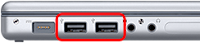
Retry your iPod with a different USB port on your computer, not a USB port on your keyboard or hub.
Restart
Restart your computer, and make sure that you have the latest software updates installed.
Note:
* To update your Windows software, select Windows Update from the Tools menu of Internet Explorer.
* To update your Mac OS software, select Software Update from the Apple menu.
Reinstall
* To update and reinstall your iPod software, first download the latest version of iTunes.
* Next, open the new version of iTunes and connect your iPod to your computer.
* Select your iPod in the source list and click "Check for Update" under the Summary tab. iTunes will check to see if your iPod needs to be updated and perform the update for you.
Restore
* Note: Because Restore erases all of the songs and files on iPod, make sure to back up any files you've saved on the iPod disk. All of your songs, videos, podcasts, audiobooks, and games can be loaded back to your iPod provided that you have them stored in your iTunes Library.
How to restore your iPod:
* 1. Make sure you've reinstalled the latest version of iTunes.
* 2. Open iTunes, and then connect your iPod to your computer.
* 3. After a few moments, it will appear in the source list in iTunes. If the iPod's display doesn't show "Connected" or "Do not disconnect" you may need to put the iPod into disk mode to proceed.
* 4. Select your iPod in the source list and you will see information about it appear in the Summary tab of the main iTunes windows.
* 5. Click the Restore button. You will be prompted with one or more restore options that may prompt iTunes to automatically download of the latest iPod Software. There were 4 more possible restore options. Just click here.
* 7. During the stage 2 of the restore process, the iPod will show an Apple logo as well as a progress bar at the bottom of the display. It is critical that the iPod remains connected to the computer or iPod Power adapter during this stage. Note: The progress bar may be difficult to see since the backlight on the iPod display may be off.
* 8. After stage 2 of the restore process is complete and the iPod is connected to the computer, the iTunes Setup Assistant window will appear asking you to name your iPod and choose your syncing preferences similar to when you connected your iPod for the first time.
For complete step-by-step guide in troubleshooting your iPod Nano 5G, go to apple.com/support
------------------------------------------------------
Some simple remedy for minor iPod problems. Nice!
Reset
To reset your iPod:
* 1. Toggle the Hold switch on and off. (Slide it to Hold, then turn it off again.)
* 2. Press and hold the Menu and Center (Select) buttons simultaneously until the Apple logo appears, about 6 to 10 seconds. You may need to repeat this step.
Retry
Retry your iPod with a different USB port on your computer, not a USB port on your keyboard or hub.

Restart
Restart your computer, and make sure that you have the latest software updates installed.
Note:
* To update your Windows software, select Windows Update from the Tools menu of Internet Explorer.
* To update your Mac OS software, select Software Update from the Apple menu.
Reinstall
* To update and reinstall your iPod software, first download the latest version of iTunes.
* Next, open the new version of iTunes and connect your iPod to your computer.
* Select your iPod in the source list and click "Check for Update" under the Summary tab. iTunes will check to see if your iPod needs to be updated and perform the update for you.
Restore
* Note: Because Restore erases all of the songs and files on iPod, make sure to back up any files you've saved on the iPod disk. All of your songs, videos, podcasts, audiobooks, and games can be loaded back to your iPod provided that you have them stored in your iTunes Library.
How to restore your iPod:
* 1. Make sure you've reinstalled the latest version of iTunes.
* 2. Open iTunes, and then connect your iPod to your computer.
* 3. After a few moments, it will appear in the source list in iTunes. If the iPod's display doesn't show "Connected" or "Do not disconnect" you may need to put the iPod into disk mode to proceed.
* 4. Select your iPod in the source list and you will see information about it appear in the Summary tab of the main iTunes windows.
* 5. Click the Restore button. You will be prompted with one or more restore options that may prompt iTunes to automatically download of the latest iPod Software. There were 4 more possible restore options. Just click here.
* 7. During the stage 2 of the restore process, the iPod will show an Apple logo as well as a progress bar at the bottom of the display. It is critical that the iPod remains connected to the computer or iPod Power adapter during this stage. Note: The progress bar may be difficult to see since the backlight on the iPod display may be off.
* 8. After stage 2 of the restore process is complete and the iPod is connected to the computer, the iTunes Setup Assistant window will appear asking you to name your iPod and choose your syncing preferences similar to when you connected your iPod for the first time.
For complete step-by-step guide in troubleshooting your iPod Nano 5G, go to apple.com/support
------------------------------------------------------
Some simple remedy for minor iPod problems. Nice!
Labels:
iPod,
ipod nano,
ipod nano 5g,
reset,
retry,
troubleshoot,
troubleshooting
Subscribe to:
Posts (Atom)


